How to remove a background from hair photos — the tricky bit explained
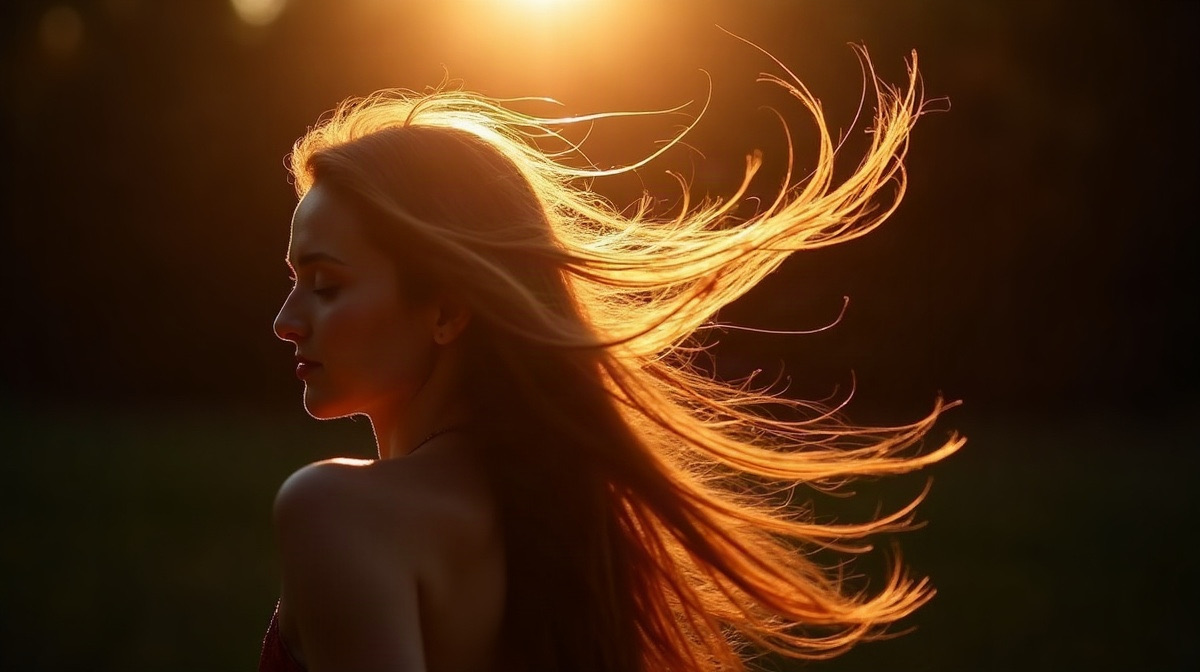
Hair is universally acknowledged as the hardest subject for background removal. Thousands of individual strands, partial transparency, and fine edges make it a challenge even for professional retouchers. Here's what to expect and how to get the best results.
Why hair is difficult
Unlike solid objects, hair has semi-transparent edges where individual strands blend into the background. A simple colour-based selection would miss half the strands. Older tools either left a fringe of the original background colour ("haloing") or cut off the hair edges entirely, producing an unnatural, helmet-hair look.
How our AI handles it
FreePhotoTools uses the IS-Net deep learning model, which was trained on millions of images including portraits. It understands that hair should be preserved and uses edge-aware matting to retain fine strands. It's not perfect for every image, but it's significantly better than simpler approaches.
How to get the best results
- Use a contrasting background — Light hair against a light background is the hardest case. Shoot against a darker, contrasting background for best results
- Good lighting — Even, well-lit hair with visible strand separation gives the AI more to work with
- Higher resolution — More pixels mean more detail, which means better edge detection
- Avoid busy backgrounds — A plain, single-colour backdrop is much easier to remove than a patterned or cluttered one
What to do if the result isn't perfect
After processing, click the Touch Up button to open the built-in brush editor. Switch between erase mode (to remove leftover background around hair edges) and restore mode (to bring back strands the AI trimmed too aggressively). Adjust the brush size for fine control. This handles 90% of hair edge fixes without leaving the page.
For extremely complex cases where individual strand-level control is needed, you can export the transparent PNG and refine it further in Photopea or Photoshop. But for most everyday uses — social media, presentations, product listings — the AI result plus a quick touch-up will be more than good enough.
Try it on your photo — it's free
Remove background →